
Creating Resources in Google Drawing
Google Drawing is not just for drawing! It is far more useful than a drawing tool. You can build worksheets, graphic organizers, infographics and so much more in Google Drawing. Here are 3 things you can do in Google Drawing, that isn’t just “drawing”.
1. To create a resource to print: Change the size of the page to match the paper size. In file, you can change the page set up to 8.5 in by 11 in. Create your design by adding shapes, pictures, text, then download as a PDF.
2. Create Manipulatives to use in other platforms. Insert a picture of the manipulative to the Google Drawing Canvas. Download as a PNG to have a transparent background! Upload the picture into your file to have a movable piece.
3. Create a background for Google Slides/Docs that can’t be moved! When you don’t want anyone to be able to move or edit anything in your background, create it in Google Drawing, and save as a JPEG or PNG image file. Upload the JPEG as the background of your slide or document, then it cannot be changed! You can then upload manipulatives to the Slide as well to create an interactive experience!
Below is a FREEBIE for you I made using this exact process I described above!!
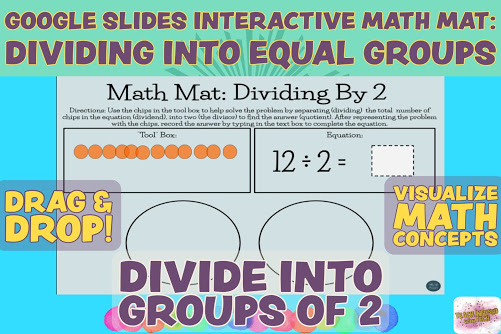
With this resource students will interact with the skill of division into equal groups / Partitive Division using a concrete and visual strategy in order to build to the conceptual understanding of Partitive Division.
This Google Slides resource is excellent for virtual learning, non-traditional instruction or distance online learning situations, but can also be used in person or hybrid. It is a versatile resource that can be used as a math center or station, independent practice or guided / modeled instruction.
The resource includes an interactive math mat with chips to represent the dividend, and a mat with spaces for dividing into equal groups of Two. To Use: Students will have the number of chips in their tool box that represent the dividend. They will drag and drop their chips into the equal spaces show to represent the division. Students can then see how many will be in each equal group. Connections can also be made to multiplication!
Students record their answers into the slides in the provided space.
You will receive 20 slide with equations and chips already set up, for a No Prep Digital Slides resource to use with instruction.
 Teach Infused With Tech By: RF